Custom Datasets vs. Airsets
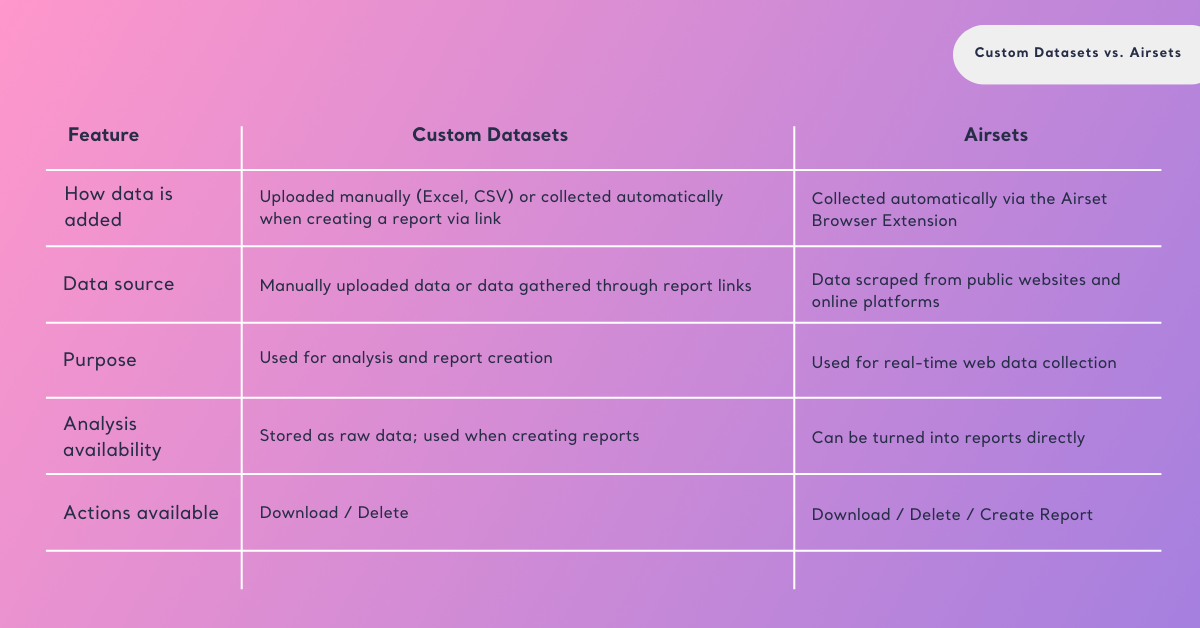
2 mins read - Created on Oct 30, 2025In Kimola, all unprocessed data you collect or upload is stored under the Datasets menu in your dashboard. This menu includes two types of datasets: Custom Datasets and Airsets. Both store raw data, but they differ in how the data is collected and how it can be used later.
To view and manage your datasets in Kimola, sign in to your account and open your Dashboard. From the left menu, click Datasets to access all of your raw data collections.
Custom Datasets
Custom Datasets refer to the datasets created for analysis purposes.
They include either:
- Files you manually upload to Kimola (such as Excel or CSV), or
- Raw datasets that Kimola automatically collects when you create a report via a supported link (for example, a product link from an e-commerce site).
When you upload or generate a dataset this way, Kimola stores your data in its original, unprocessed form under Datasets → Custom Datasets.
This section serves as a secure place where you can view, download, or delete your datasets before or after analysis.
For example, if you upload an Excel file with customer feedback, it will appear here as a Custom Dataset.
Similarly, if you create a report from a product link, the system automatically gathers related comments and reviews and saves them here — typically including columns such as Content, URL, Date, Rating, Platform, and Title.
Airsets
Airsets are datasets automatically created using the Kimola Airset Browser Extension. The extension allows you to scrape real-time data from supported platforms, including Amazon, YouTube, Reddit, Instagram, TripAdvisor, and more.
When you collect data with the Airset Generator, it is stored under Datasets → Airsets. These datasets also contain raw text data, but unlike Custom Datasets, they can be directly turned into reports within Kimola.
Airsets are especially useful for collecting ongoing consumer feedback or public conversations from the web, providing a quick way to transformraw data into insights.
To start collecting data automatically, first learn how to set up the Airset Browser Extension by visiting Set up the Airset Browser Extension .Once installed, you can begin generating Airsets directly from supported platforms.