List Custom Datasets
1 min read - Created on Oct 31, 2025In Kimola, Custom Datasets represent the raw versions of your uploaded or link-generated data — unprocessed text collected before any analysis. The Custom Datasets page allows you to view and explore all datasets stored in your account.
To access your custom datasets, sign in to your Kimola account and open your Dashboard. From the left panel, click Datasets, then select Custom Datasets.
This section lists all datasets you’ve either:
- Uploaded manually (e.g.,
.xlsx,.csv,.tsvfiles), or - Automatically generated while creating a report from a product or content link.
Explore the Custom Datasets
Each dataset appears as a row in the list, showing key information:
- Dataset Name: The name you gave when uploading or generating the dataset.
- Created Date: The date and time the dataset was added.
- Rows: The total number of records (e.g., comments, reviews, feedback).
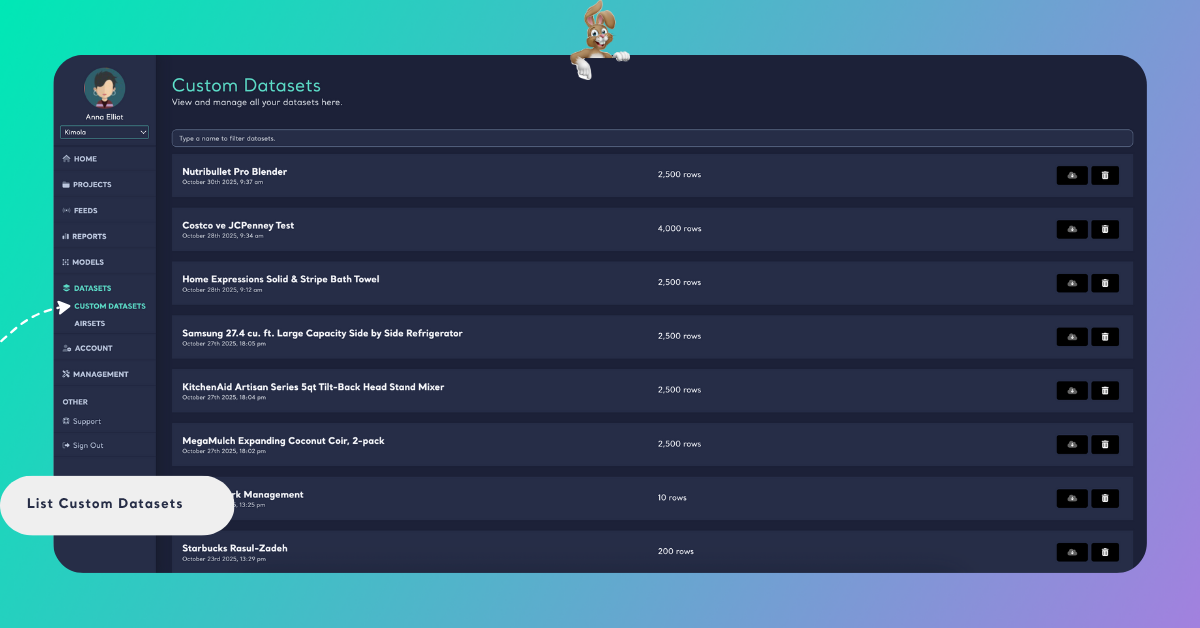
This overview helps you quickly understand which datasets are available and how large each one is.
Search and Filter
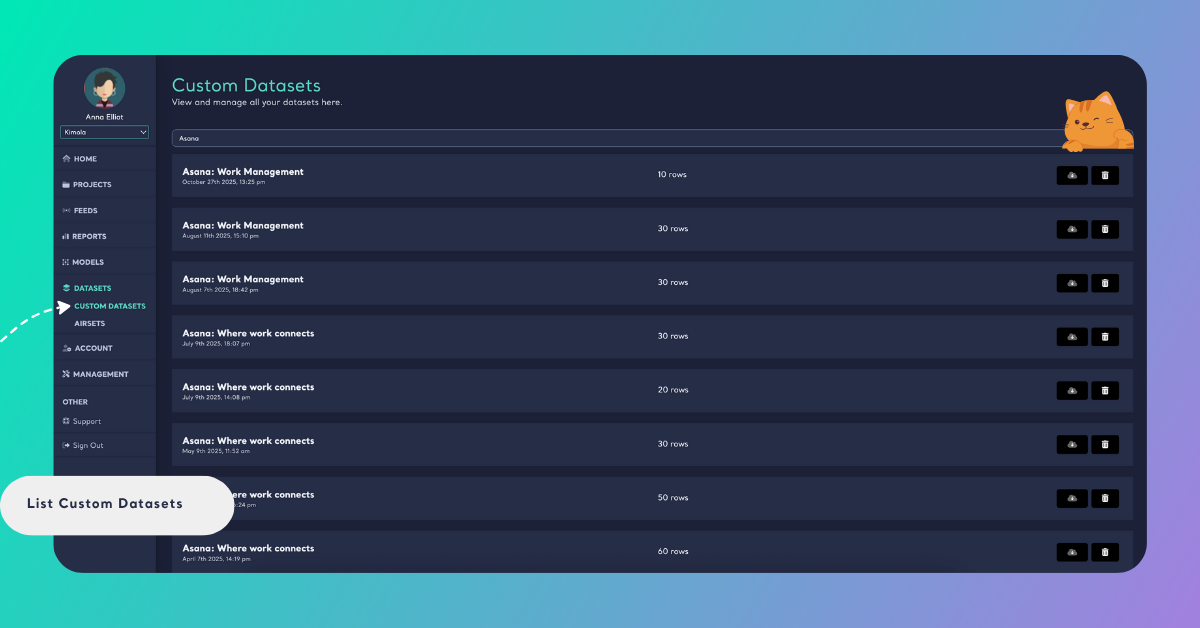
At the top of the page, you can easily locate a specific dataset using the search bar. Type part of the dataset’s name to filter your list instantly.
Typing “Asana” will show all datasets related to that product name.