Create a Report by Adding Links
5 mins read - Updated on Dec 16, 2025Creating a report by adding links allows you to analyze public content directly from specific pages such as product listings, app pages, or business profiles. Instead of tracking broad conversations with keywords, this method focuses on known URLs, enabling more targeted and source-specific analysis.
This approach is especially useful when you want to analyze reviews or comments from a specific product, location, or competitor page.
Sign in to your Kimola account and go to the Dashboard Home page.
Analyze Single Link in One Report
Step 1: Copy the Link You Want to Analyze
Open the public page you want to analyze and copy its URL from the browser’s address bar. This can be a product page, app page, business profile, or review listing from a supported platform.
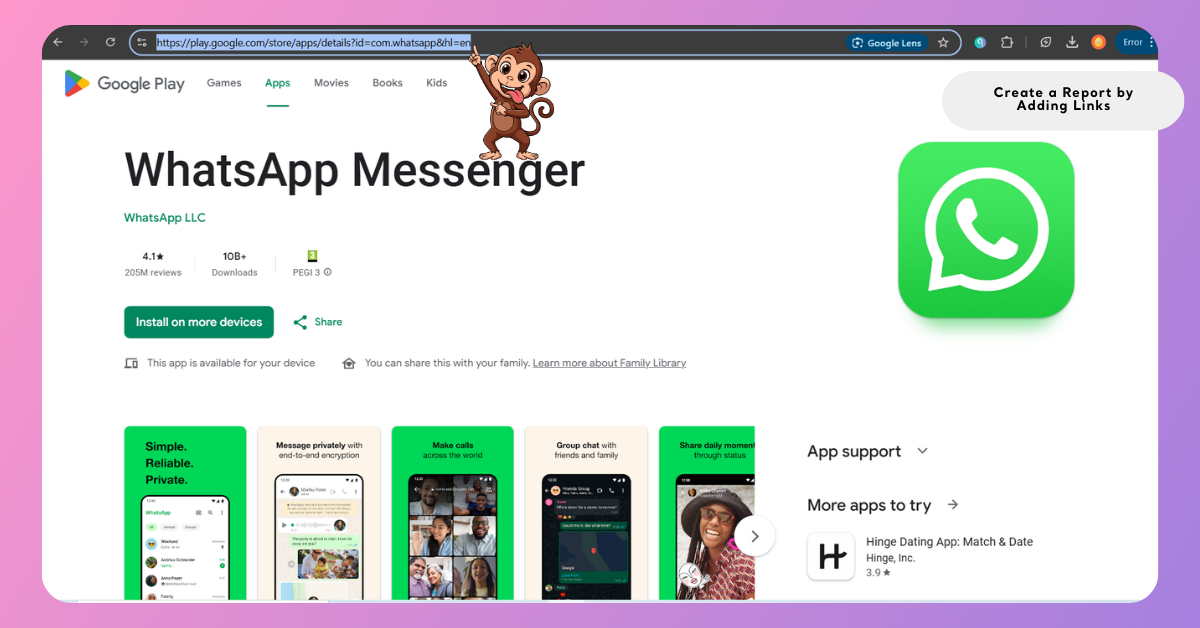
For a full list of supported platforms and platform-specific details, see Supported Platforms for Creating Reports from Links.
Step 2: Paste the Link into the Kimola
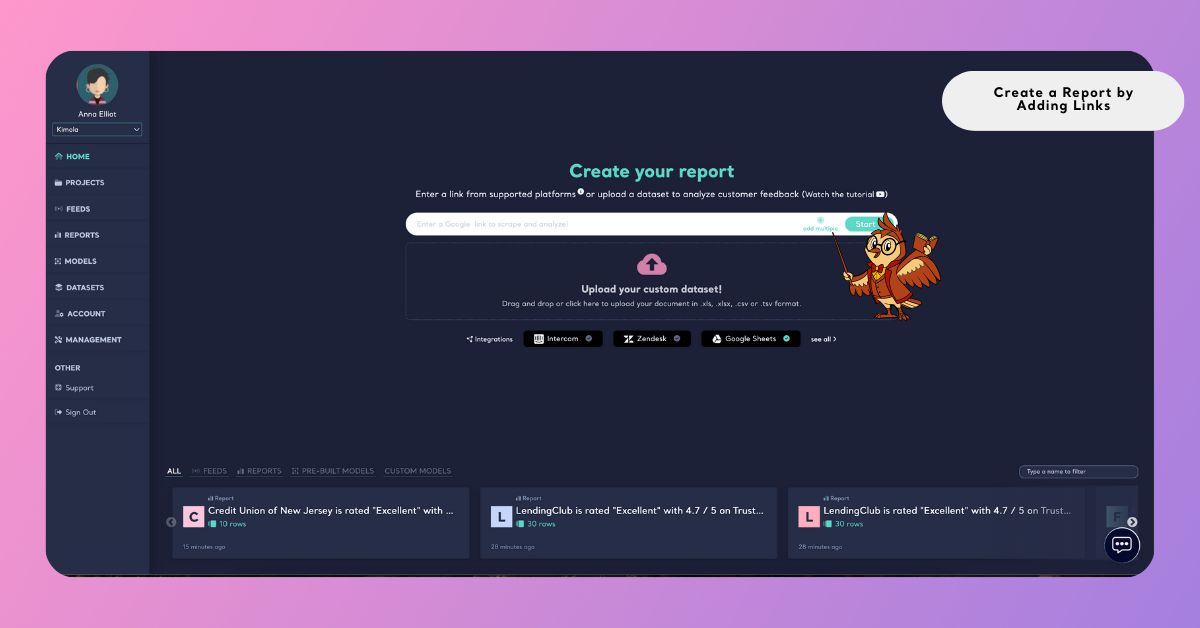
On the Kimola dashboard, locate the Create your report area.
- Paste the copied URL into the search bar
- Press Start to add the link
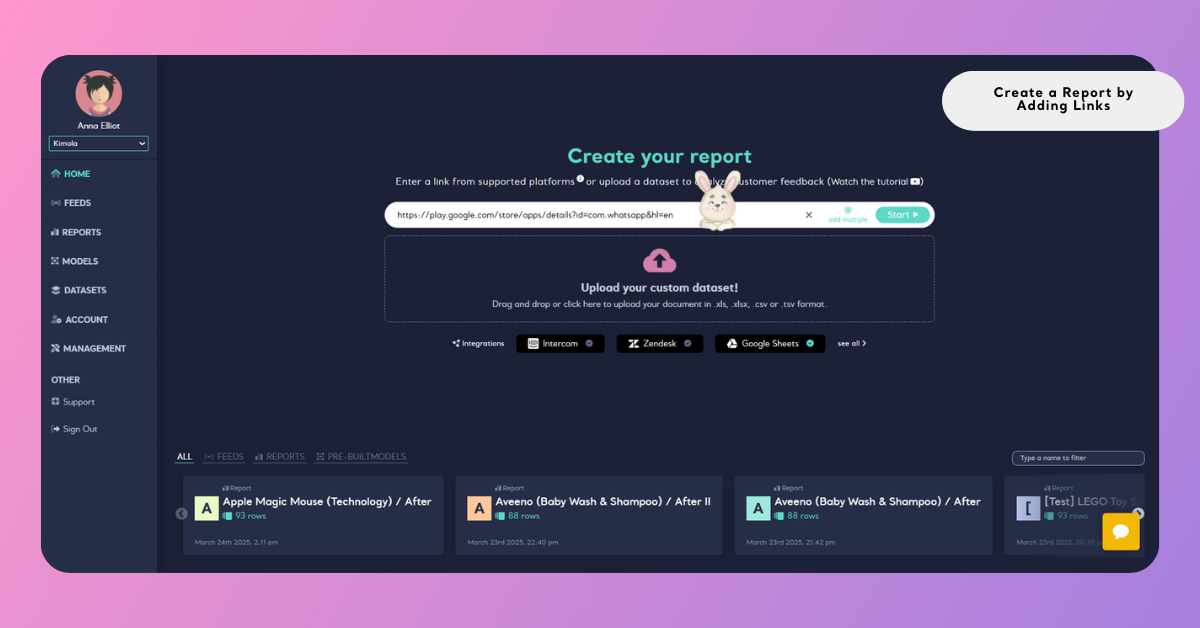
Kimola will recognize the link and prepare the dataset for analysis.
Step 3: Select the Amount of Data to Collect
Use the slider to choose how many records (such as reviews or comments) you want to include in the report.
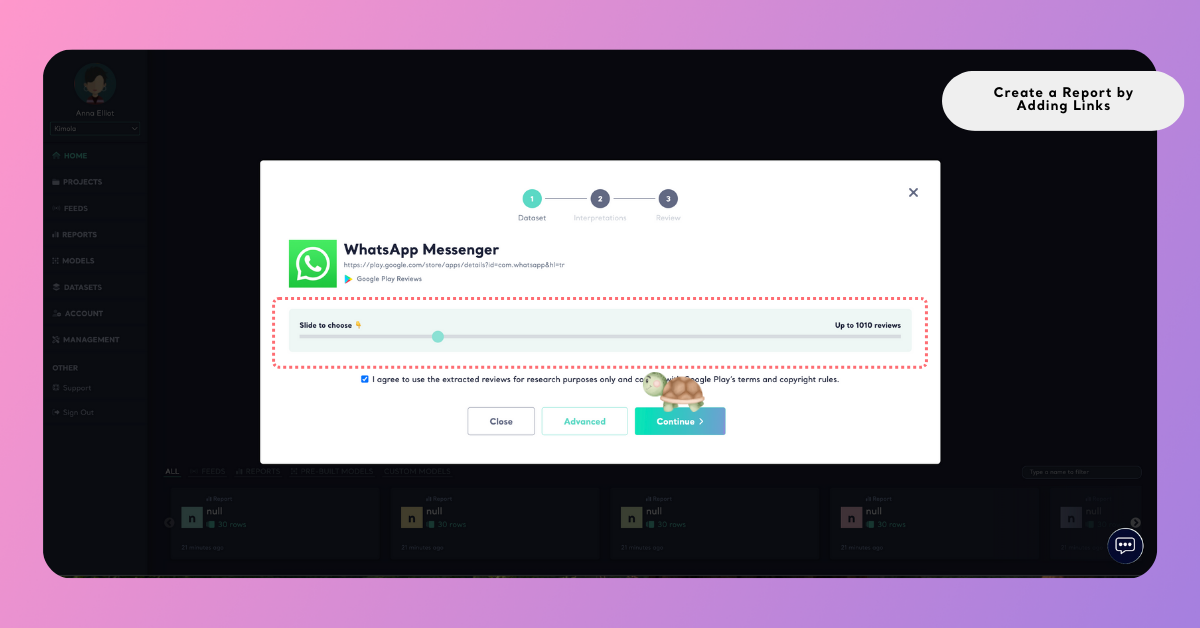
This helps you control the size of the dataset and manage your query usage efficiently.
Step 4: Select Dimensions (Optional)
After defining the amount of data to collect, you can choose dimensions to enrich your report.
Dimensions are analytical layers that organize customer feedback into structured categories such as motivations, pain points, unmet needs, personas, experience stages, and usage contexts. These dimensions help surface deeper qualitative patterns and contextual insights within your dataset.
Selected dimensions appear under My List on the left side, allowing you to review and adjust them before creating the report.
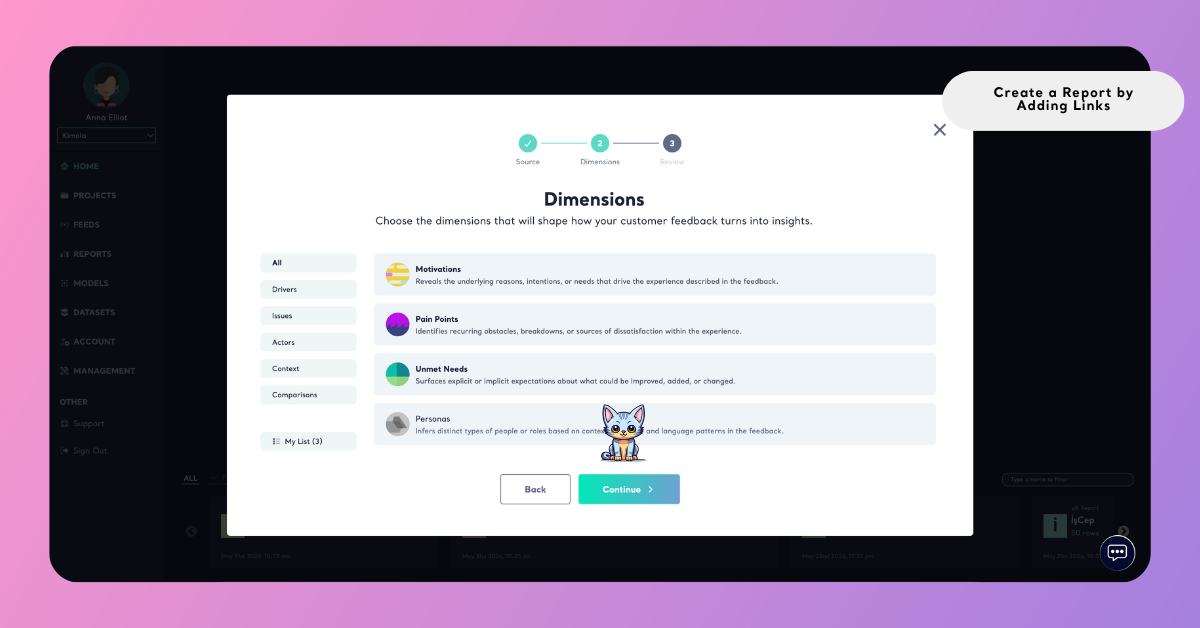
Dimensions use queries during generation and analysis. Query usage depends on factors such as the number of records included in the report and the dimensions selected for generation.
You can skip this step if you don’t need dimension outputs and want to proceed directly with the report creation.
Step 5: Review and Configure Report Settings
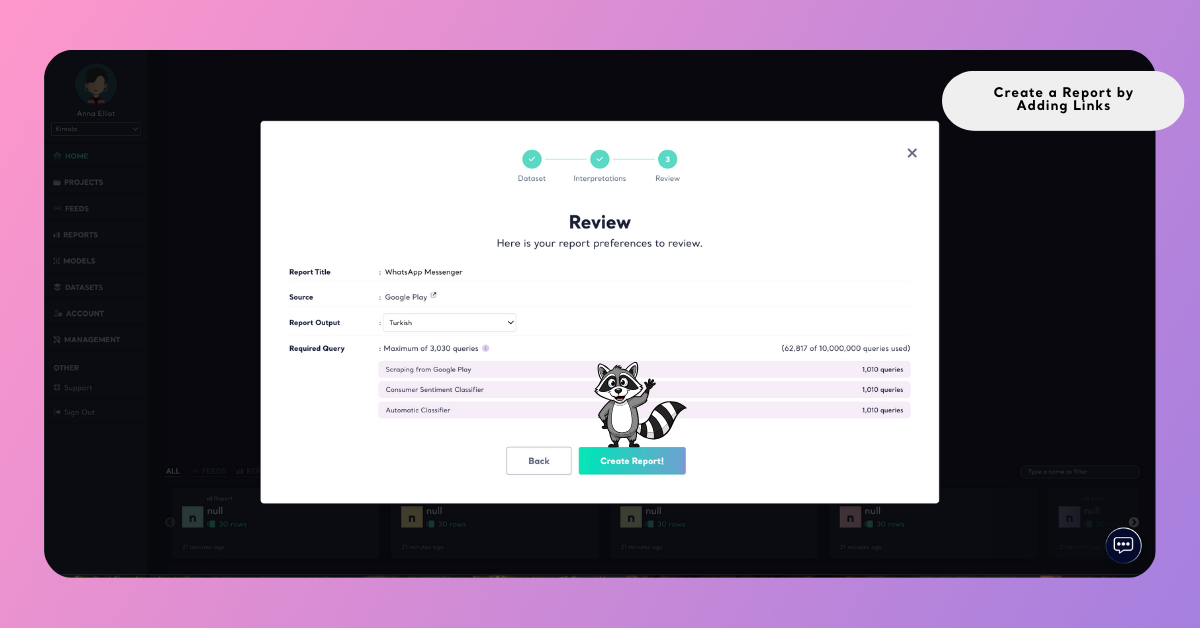
After completing the Dataset and Dimensions steps, you’ll see the Review screen. This page summarizes all report settings before creation and helps you understand how your selections affect analysis and query usage.
- Report Title
The Report Title is automatically generated based on the analyzed source.
For link-based reports, this title usually matches the product, place, or page title as it appears on the original platform (for example, an Amazon product name).
The report title cannot be left empty and does not need to be edited at this stage.
- Source
The Source field shows the platform from which the data is collected, such as Amazon, Google Maps, App Store, or another supported source.
This information is detected automatically from the link you add and helps you clearly identify where the report data comes from.
- Report Output Language
Use the Report Output dropdown to choose the language in which the report results will be generated.
This setting controls the language of analysis outputs, including sentiment labels, themes, summaries, and dimension results.
- Required Query Usage
The Required Query section shows how many queries will be used to create the report and how they are distributed across analysis steps.
This breakdown may include:
- Scraping queries used to collect data from the selected platform
- Sentiment classification queries applied to each record
- Automatic or custom classifier queries based on the selected dimensions
The total number displayed represents the maximum queries required for this report. This allows you to review plan usage in advance and understand how data volume and selected dimensions impact your quota.
- Create the Report
After reviewing all details, click Create Report to start the analysis. Kimola will collect the data from the selected link, apply the chosen analyses, and generate the report.
Analyze Multiple URLs in One Report
To analyze more than one URL in a single report, use the Add Multiple option in the search bar.
Paste each URL on a new line into the input field. Kimola will collect and combine the data from all provided links into one dataset and generate a single report.
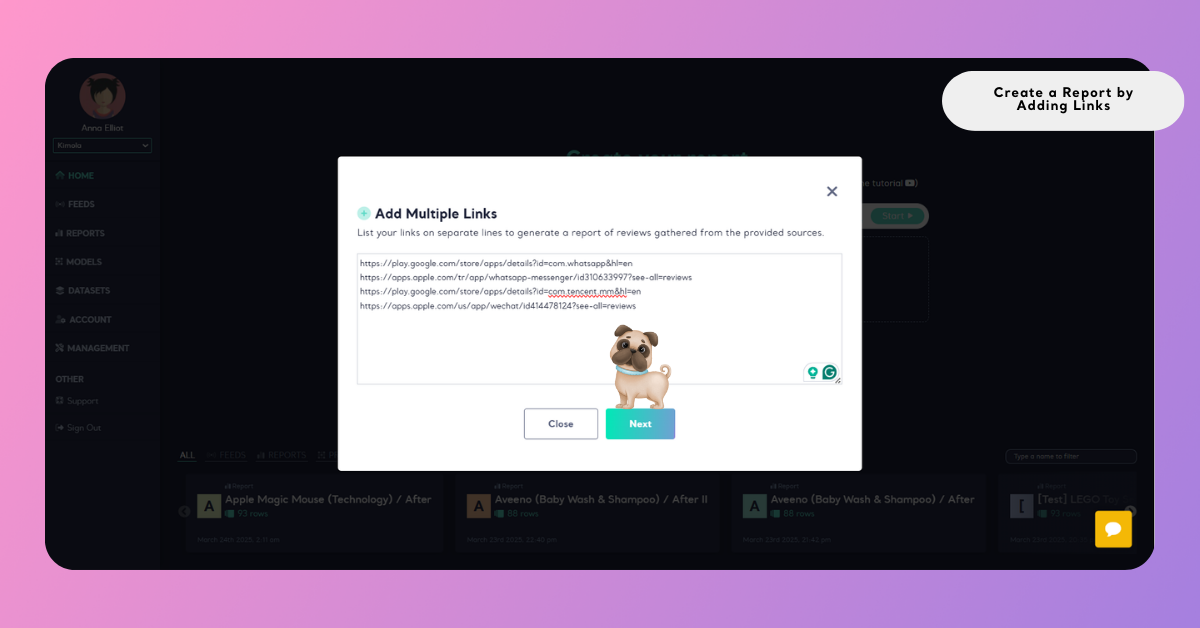
When adding multiple URLs, you are required to enter a report name manually. Unlike single-link reports, the report title is not generated automatically, since the report includes data from multiple sources.
This is useful when:
- Comparing reviews from multiple competitor products
- Analyzing several store locations or listings together
- Reviewing feedback from different platforms under one report
Adding multiple links allows you to consolidate related data into one report while keeping your analysis structured and easy to manage.
Once complete, the report will appear under the Reports section, where you can review results, export outputs, or organize it under a Project — a folder-like workspace used to group related feeds, reports, and models.